Maze app

Rapid, remote testing platform for agile teams, from idea to launch.
Maze empowers product and marketing teams to test anything from prototypes to copy, or round up user feedback—all in one place. Rapidly collect user insights across teams and create better user experiences, together. Works with: Figma, Adobe XD, InVision, Marvel & Sketch.

Before starting the preparation of Usability Testing setup in Maze app, make sure that you have prepared clickable prototype in Invision, list of features/use cases to be tested, scenarios and tasks descriptions and identified your targeted participants.
Steps to
Setup Usability Testing in Maze App
Step 1 –
Create clickable prototype in Invision and copy the public link.
Step 2 – Import your prototype in Maze by pasting the prototype public URL and add New project.

Step 3 – Create Missions (Imagine missions as tasks that end user will need to perform in Usability Testing). You can create a list of Usability Testing tasks for users and then define the success path/Optimal path. Make sure you provide proper clickable points in prototype and correct success page (where the task should get completed). The recommended Missions/tasks count is 5-7 per Usability Test Session per Person, but it always depends upon the task length as well. Do not overload participants with tasks, it may lead to mental fatigue and lead to errors/biases.


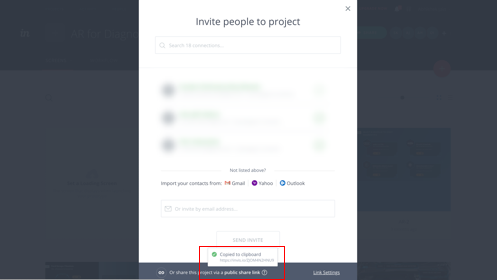
Step 4 – Once you have created all of your missions (tasks), now you have reached to a stage where you can make your testing (Maze) live. By clicking ‘Send Live’ button at top-right corner, your Maze will be ‘live’ and you may get Usability Testing URL.

Step 5 – Always try and explore the testing URL and test setup by yourself. For this just become a test participant and go through the test using testing URL. If you find any changes in flow or any errors, correct them before reaching to actual participants.
Explore Maze app
Rapid, remote testing platform for agile teams, from idea to launch.